Besides orders your customers place themselves via an order payment link, you can also create an order for a customer yourself. Useful when a customer orders by phone, for example.
Orders are available from the Expert plan. You need products first: see How do I create a product?.
Creating an order
Open the customer, click “New” at the top right and choose “Create order”. You can also click the customer’s “Orders” tab.
Check the details. The customer’s name and email address are already filled in. Complete the address, postal code, city and country. Organization, VAT number and phone number are optional.
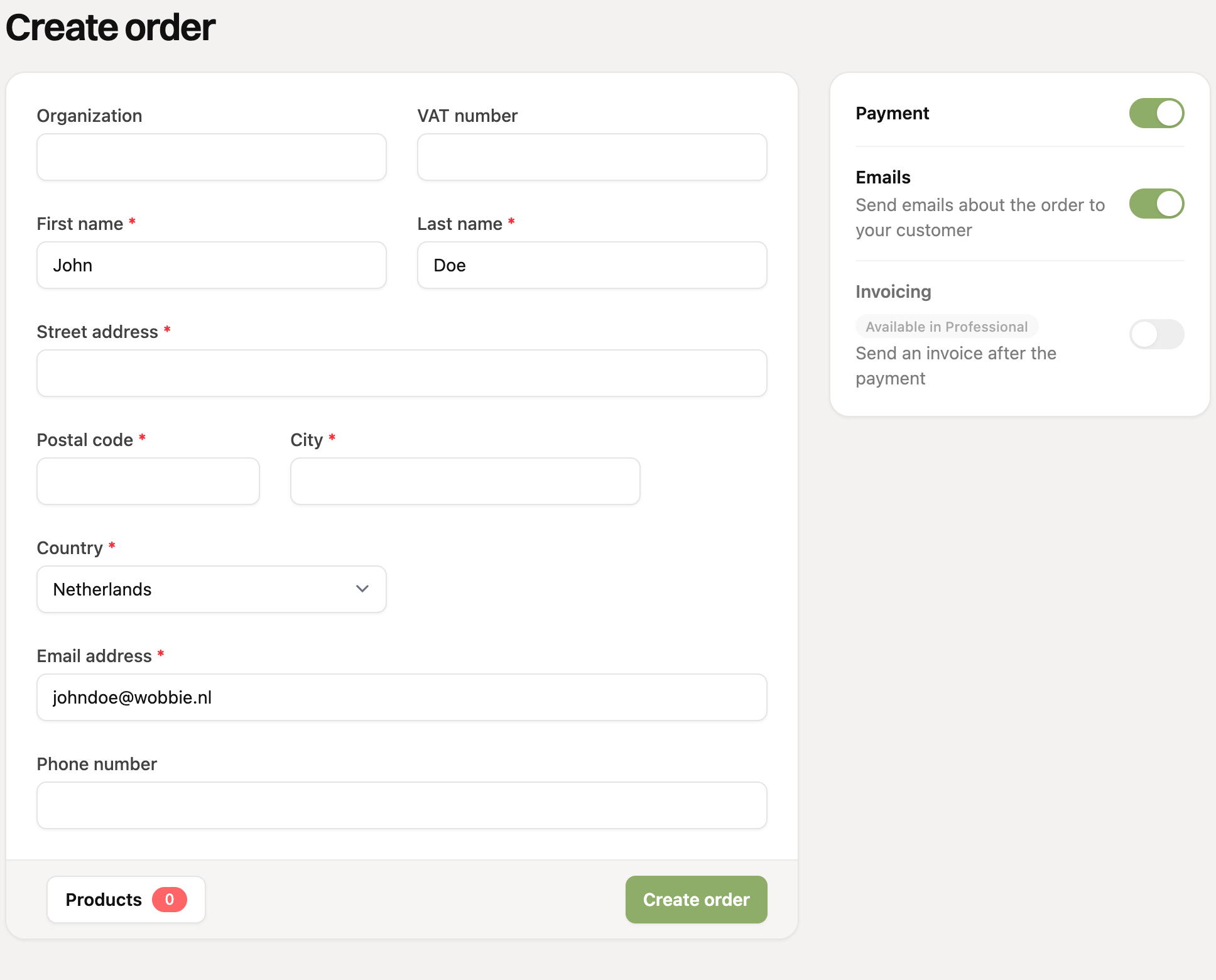
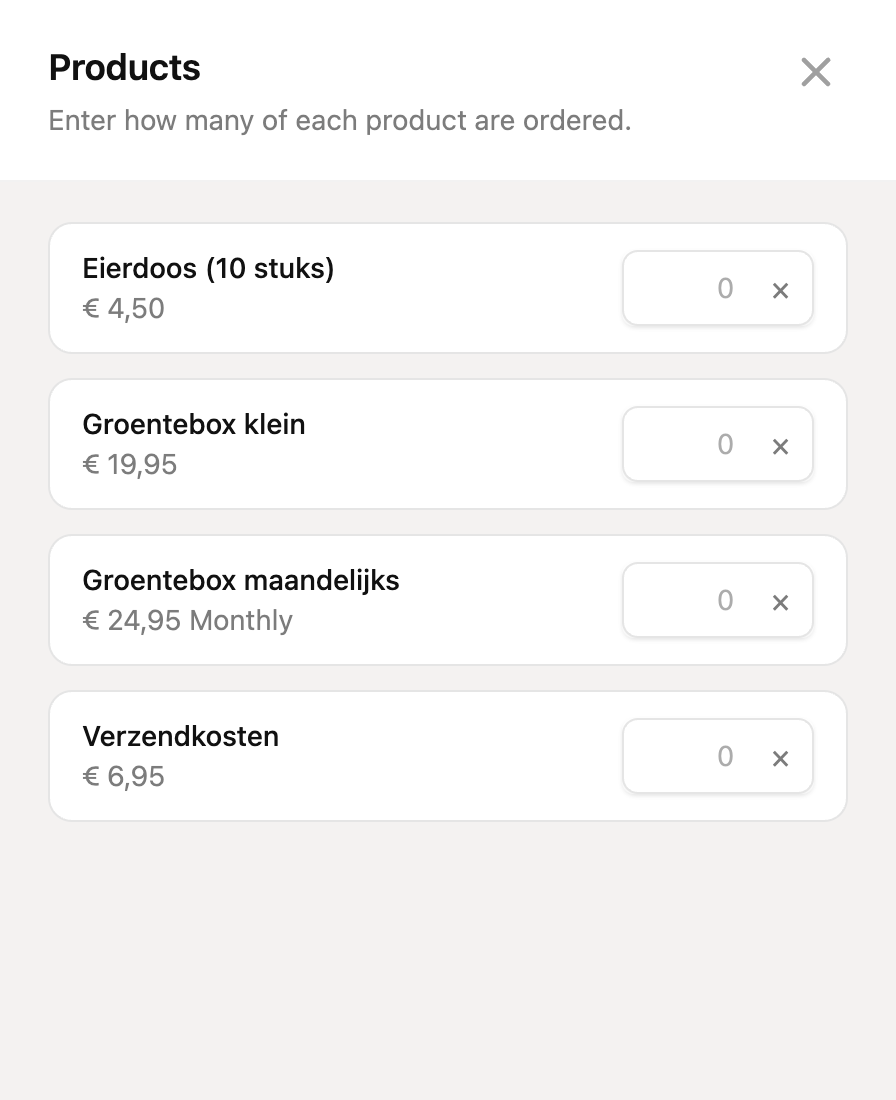
Click “Products” at the bottom left and enter for each product how many are ordered. The number on the button shows how many products you chose.
Choose the options on the right (see below) and click “Create order”.
The order then opens with its own order number, which RCUR assigns automatically.
Options
Payment (on by default): RCUR collects the amount right away via the customer’s mandate. The customer therefore needs a valid mandate. Without a mandate the collection fails. If you turn this option off, nothing is collected and you can mark the order as paid yourself later.
Emails: send the customer an email about the order.
Invoicing (from Professional, with a connected invoicing app): automatically create an invoice for the order.
Is there a product of the type “Subscription” in the order? Then it automatically becomes a recurring order. Read How do recurring orders work?.
What happens next?
You can read how to update the status of an order in What do the order statuses mean?.