With templates you set up once the texts RCUR sends to your customers on your behalf. That way you do not have to write an email yourself every time, and your customers always see the same familiar messages.
What do you use templates for?
Emails: for example an email with the payment link, a reminder, a follow-up after a failed direct debit, a confirmation of a payment or order, or a pre-debit notification.
Texts for the checkout screen: the text your customer sees after a payment has succeeded or failed.
Workflows: a workflow can automatically send an email using a template you made.
The overview
You find your templates under Settings > Templates. For each template you see the type (email or text), the name and the languages the template is available in. The name is only for you: customers do not see it. With the buttons next to a template you can edit it, add a translation or delete it.
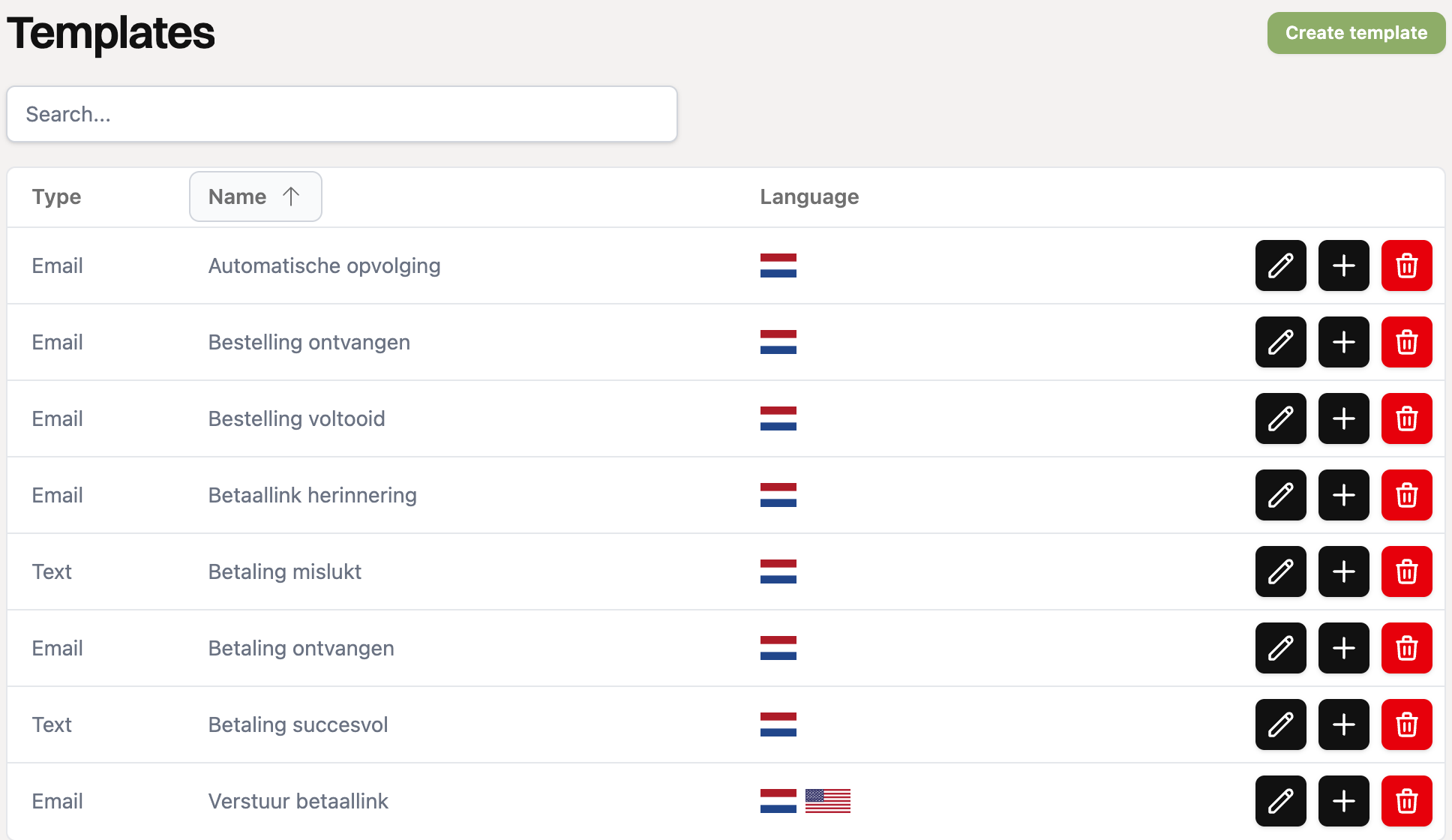
There are already default templates ready for you. You can adjust them completely to your own liking and you can add your own templates.
Multiple languages
You can create every template in multiple languages. Your customer then automatically gets the email in the language set for them. If there is no translation in your customer’s language, RCUR uses the default language of the template.
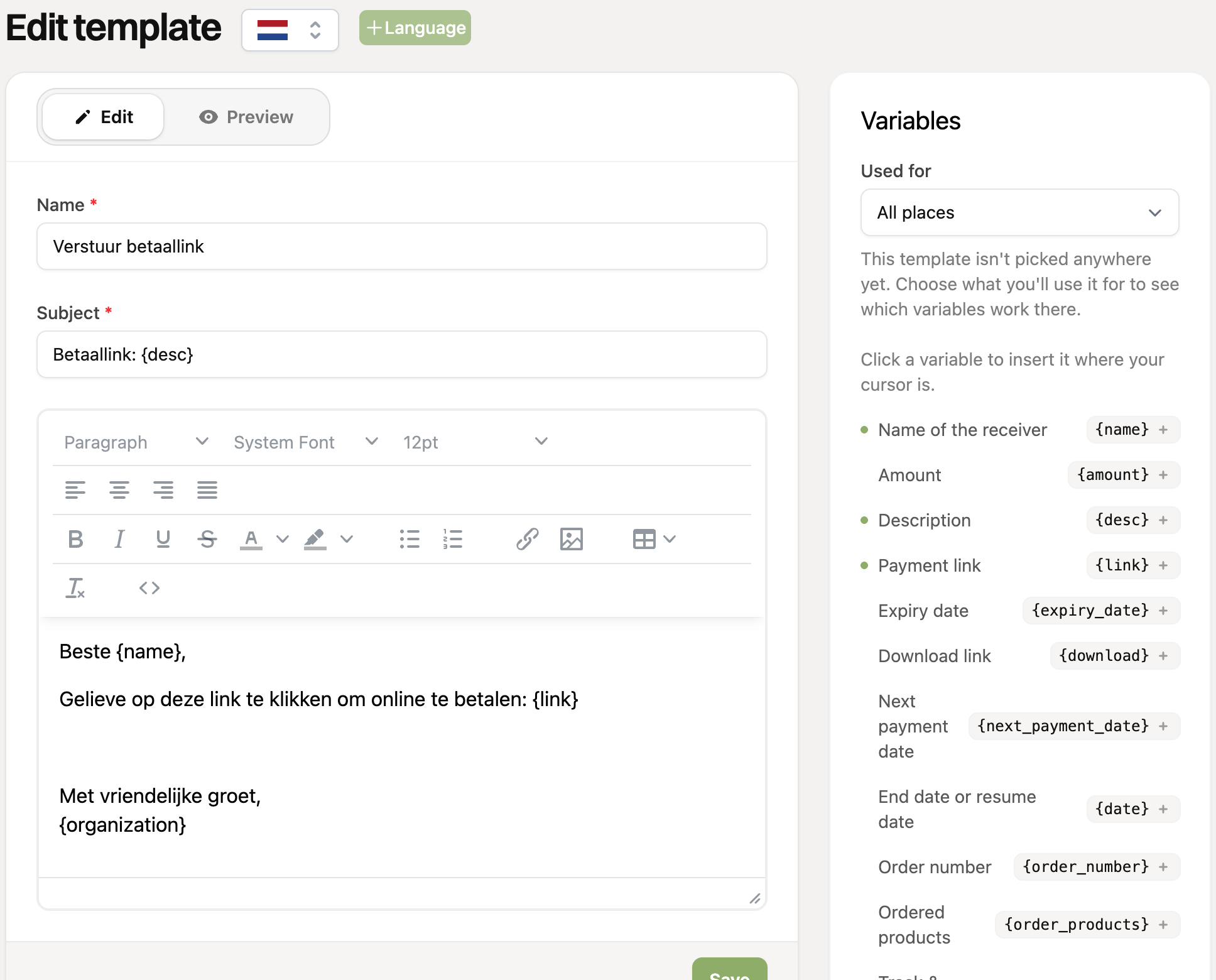
You add a translation with the plus icon next to the template in the overview, or with the “+ Language” button at the top when you edit a template. With the flag at the top you switch between the languages of the template.
Using variables
In a template you can use variables such as {name} and {link}. RCUR fills them in with your customer’s details when it sends the message. Next to the editor you find the variables you can use. Under “Used for”, choose what you use the template for, and you see exactly which variables work there. Read more in What variables can I use in which emails?.
Where do you choose a template?
On a payment link: choose the templates for the checkout screen (for a successful and a failed payment). If you use the email option (from the Advanced plan), you also choose the emails that go to your customer here.
When sending an email: choose a template to prefill the subject and message. Read how to email a payment link.
For a pre-debit notification: choose the template when setting up an Advanced subscription. Read how pre-debit notifications work.
In a workflow: choose the action “Send e-mail”. Read how to create a workflow.