
Variables make your emails more personal. A variable is a piece of text between curly braces, such as {name}. When RCUR sends the email, the variable is replaced by the real value, for example the name of your customer.
Inserting variables
You create emails (and texts for the checkout screen) under Settings > Templates. Next to the editor you find the “Variables” panel. Under “Used for”, choose what you use the template for: the panel then shows exactly the variables that work in that email. Click a variable to insert it where your cursor is.
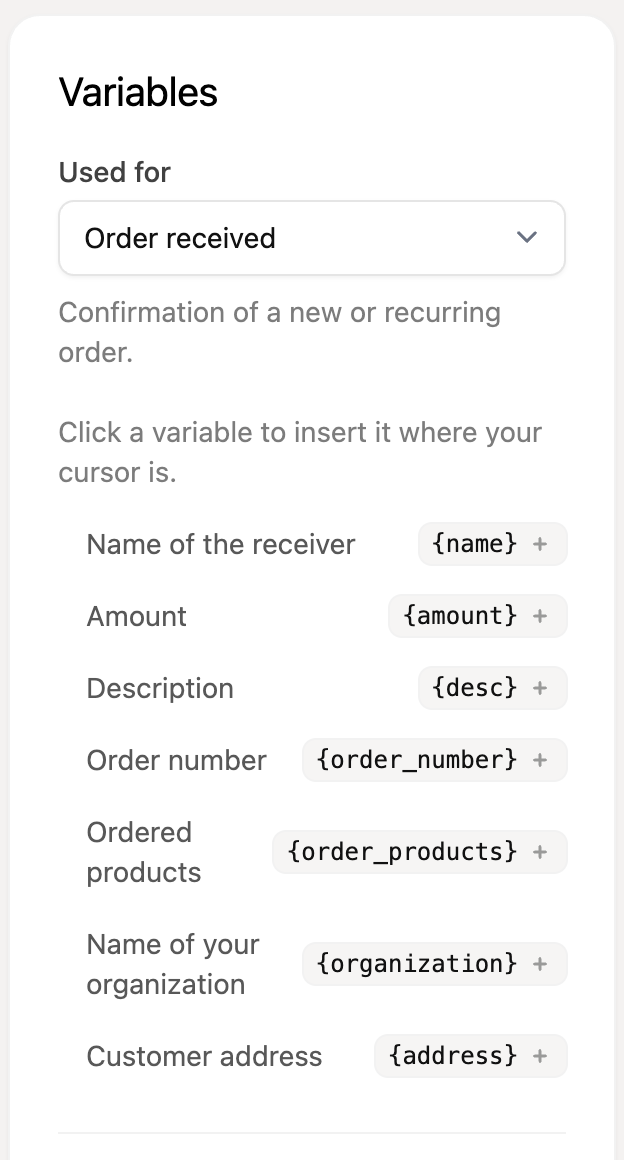
A variable that does not belong to the chosen type is not replaced. The email then literally contains, for example, “{link}”. So only use variables from the list of the right type.
What does each variable mean?
Variable | What it is for |
|---|---|
| The full name of the receiver. |
| The description of the payment link, follow-up, subscription or order. |
| The amount of the payment link, follow-up, subscription or order. |
| The name of your organization from the selected Mollie profile. |
| The URL to the checkout screen, in other words the payment link. |
| The expiry date of the payment link, if one is set. |
| The URL to download the file, if the “Attachment” option is enabled for the payment link. |
| The address of the customer. |
| The date (dd-mm-yyyy) on which the next payment will be created at Mollie. After that it usually takes 1 more business day before the amount is debited. |
| The end date or resume date the customer chose in the customer portal. |
| The order number. |
| A table with the ordered products. |
| The Track & Trace code, as entered when completing the order. |
| The URL to the Track & Trace page. |
{order_address} is the old name of {address}. Existing templates with {order_address} keep working in the order emails, but use {address} for new templates.
Which variables can I use in which email?
Type | When it is sent | Variables |
|---|---|---|
Send payment link | When you manually email a payment link or follow-up. |
|
Payment link reminder | Automatic reminder for an open payment link. Only for payment links you created for a specific customer, because for a general link we do not know the email address. |
|
Automatic follow-up | After a failed direct debit, with a link to pay after all. |
|
Payment received | Confirmation after a successful payment or sign-up through a payment link. |
|
Order received | Confirmation of a new or recurring order. |
|
Order shipped | When an order is completed, with track & trace. |
|
Pre-debit notification | Notice of an upcoming direct debit for an Advanced subscription. |
|
Customer portal | Confirmation of pausing or cancelling through the customer portal. |
|
Workflow | Email a workflow sends to the customer. |
|
Checkout page (text, not an email) | The text on the checkout screen after the payment is done. |
|