
With templates you set the texts that RCUR sends to your customers, such as the email with a payment link, a reminder or a confirmation, and the text on the payment screen. A new account comes with default templates that you can edit. You can also create new templates yourself.
Creating a new template
Go to Settings and open Templates. Here you see all your templates, with their type and languages.

Click Create template at the top right.
Choose the type: Email (default) or Text. You use an email template for emails to your customers, and a text template for the text your customer sees on the payment screen.
Choose the default language. It is used when the template has not been translated into the customer's language.
Enter a name. Customers do not see this name, you see it when choosing a template, for example when sending an email.
For an email template, also enter the subject. This is the subject of the email.
Write the content: the text of the email or the text on the payment screen.
Click Save.
Using variables
In the subject and content you can use variables, such as {name} for the name of the recipient, {amount} for the amount and {link} for the payment link. RCUR fills them in when sending. To the right of the form you see all variables. Click a variable to insert it where your cursor is.
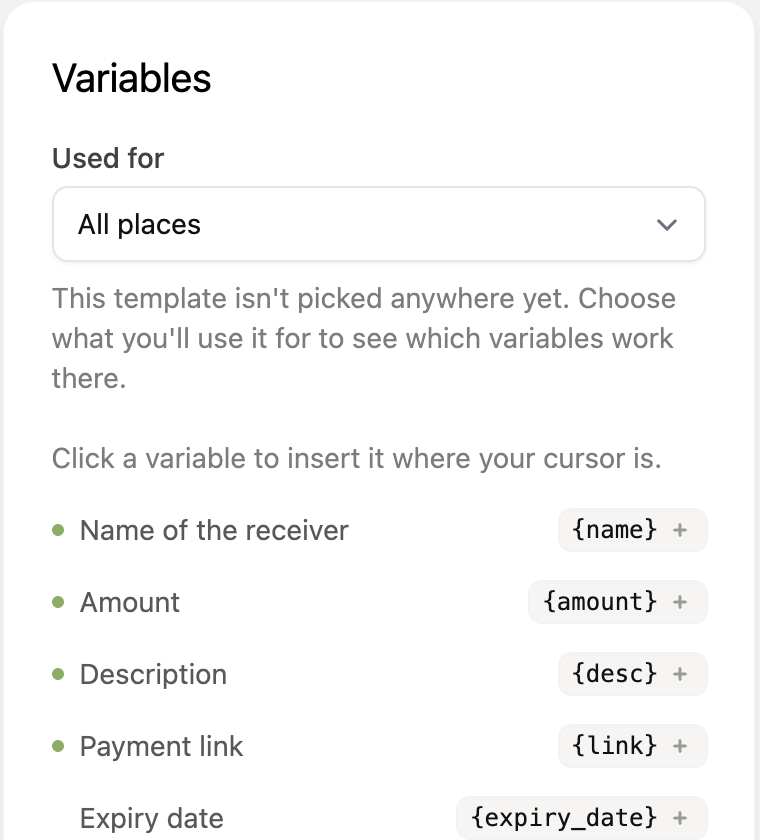
Not every variable works everywhere. Choose what you will use the template for under Used for (for example send payment link, reminder or pre-debit notice), and you see which variables work there. A variable that is not available in that place stays in the message literally.
Use the “Preview” tab to see how your template looks to the recipient, filled with example data.
Adding a translation to an existing template
Want the same template in another language? In the overview, click the + icon next to the template. You can also add a language while editing the template, via the + Language button at the top of the screen.
Choose the language and enter the subject (for an email) and the content. Each customer then receives the template in their own language, or in the default language if there is no translation.