
With custom fields you ask your customer extra questions at checkout, for example a name for a card, a delivery date, a dietary need or a checkbox to agree to your terms. You create a field once and then use it on as many payment links as you like.
Custom fields are available in the Professional plan.
Creating a custom field
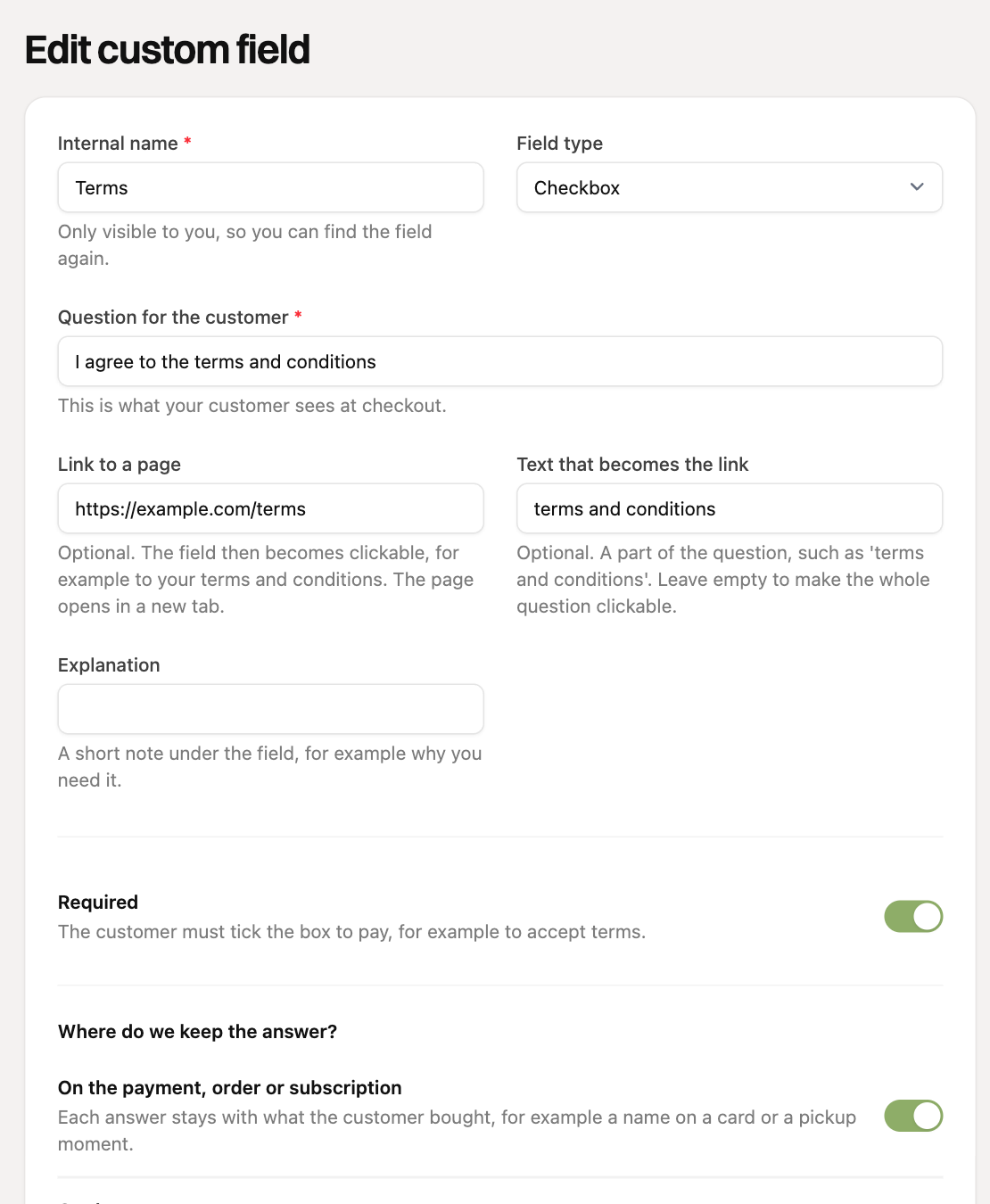
- Go to Custom fields in the menu and click Add custom field.
- Enter the internal name. Only you see it, so you can find the field again later.
- Enter the question for the customer and choose the field type (see below).
- Switch on Required if the customer must fill in the field to be able to pay.
- Choose where the answer is kept (see further down) and click Save.
Field types
- Short answer and Long answer: free text, for example a name or a remark. You can add an example text in the empty field.
- Number: for example the number of people.
- Dropdown: the customer chooses from answers you provide.
- Checkbox: a switch the customer turns on. If the field is required, the customer has to turn it on to pay, for example to agree to terms.
- Date: for example a preferred delivery date.
You can also add a short explanation to any field. It appears in small text under the field.
Putting a link in the question
Enter a web address under Link to a page and the question becomes clickable, opening the page in a new tab. Handy for your terms and conditions on a checkbox. If only part of the question should be the link, enter that part under Text that becomes the link, for example "terms and conditions". Leave it empty and the whole question is the link.
Where do we keep the answer?
You choose per field where the answer stays. You can switch on both.
- On the payment, order or subscription: each answer stays with what the customer bought. This suits a name on a card or a pickup moment, which differs with every purchase.
- On the customer: the latest answer stays with the customer and a new answer replaces the previous one. This suits a dietary need or a preference.
If you choose only 'on the payment, order or subscription' but the checkout makes no payment (for example a link to give a mandate), we keep the answer on the customer.
Adding fields to a payment link
- Open a payment link to edit it, or create a new one.
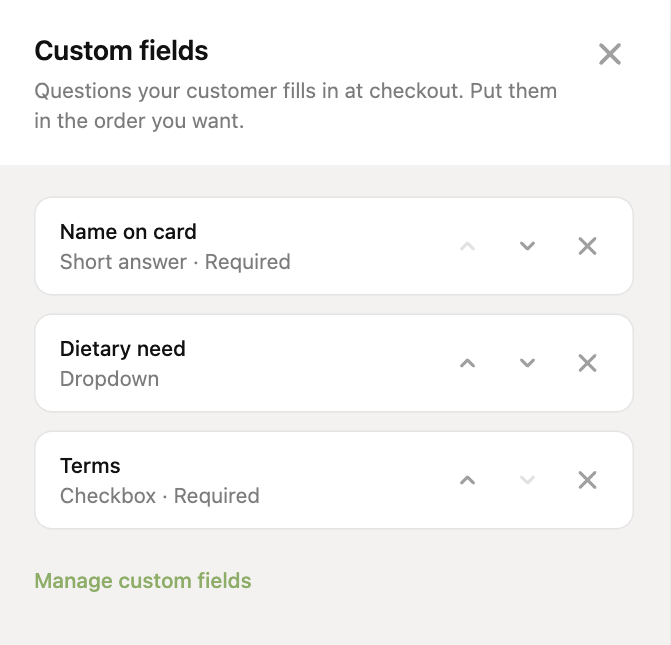
- Click the Custom fields button at the bottom. The number shows how many fields the link has.
- In the panel, search by name, question or type and click a field to add it.
- Use the arrows to put the fields in the order you want and the cross to remove a field.
- Click Done and save the payment link.
Custom fields work on all types of payment links.
What does your customer see?
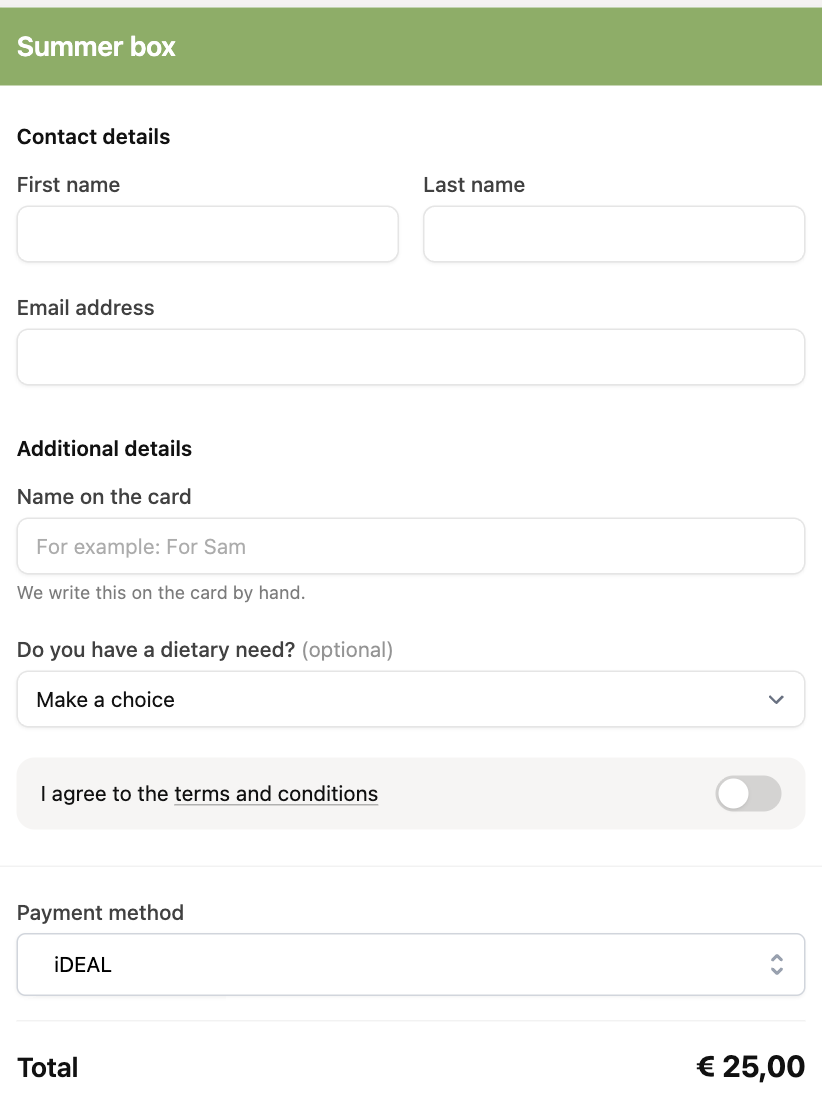
The fields appear under Additional details, in the order you set. Fields that are not required get "(optional)". If the customer leaves a required field empty, they get a message at that field and cannot pay yet.
Where do you find the answers?
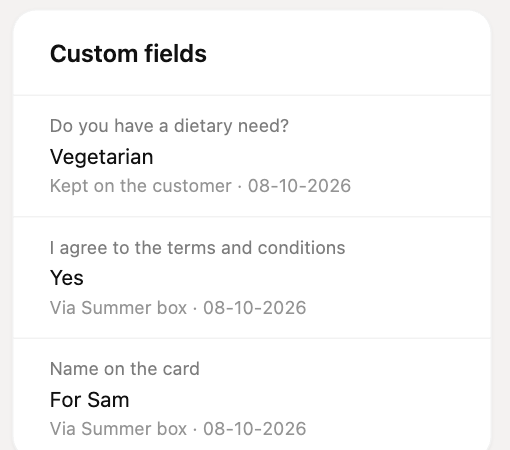
- Customer page: the Custom fields card on the right holds all answers of that customer. What is kept on the customer comes first, then the answers on purchases with the name of the payment link and the date.
- Order and Advanced subscription: the page has a Custom fields card with the answers of that order or subscription.
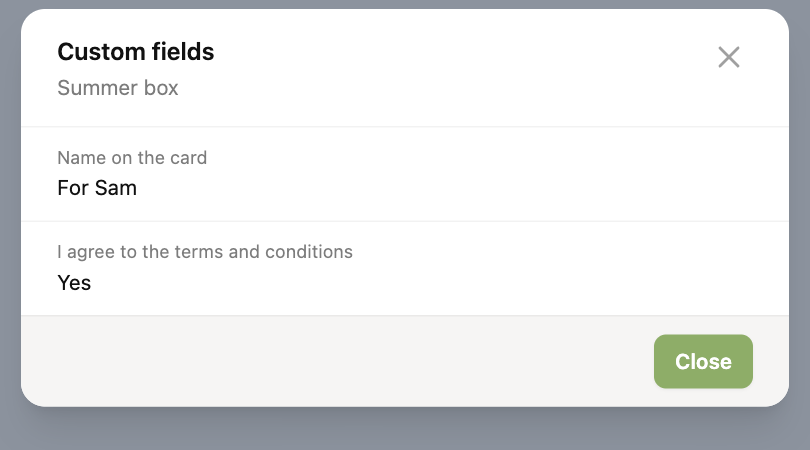
- Payments and Basic subscriptions: on the customer, go to the Payments or Basic subscriptions tab. If a payment or subscription has answers, there is a Custom fields button. Click it to open the answers in a window.
Answers in e-mails and notifications
- In your Payment received and Order received e-mail templates you can use the variable
{custom_fields}. It is replaced by an overview of the questions and answers of that purchase. If the customer filled in nothing, it stays empty. - If you get a notification for a new order, the answers are in it too.
Changing or deleting a field
- You can always change the question, explanation, choices and settings. What customers filled in earlier stays as they saw it, with the old question.
- Once customers have filled in a field, you can no longer change the field type.
- If you delete a field that has been filled in, it is archived: it disappears from your list and the checkout, but the answers stay visible. A field that was never filled in is really deleted.
- If you lose the Professional plan, your payment links no longer ask the fields. Answers you already have stay visible.