
Yes. With the {custom_fields} variable you put an overview of what the customer filled in at checkout in an e-mail. Handy as a confirmation, for example with the name on the card or the preferred delivery date.
Custom fields are available in the Professional plan.
Putting the variable in your template
- Go to Settings and open the e-mail template you use for a successful payment or a received order. You create a new template with the type Payment received or Order received.
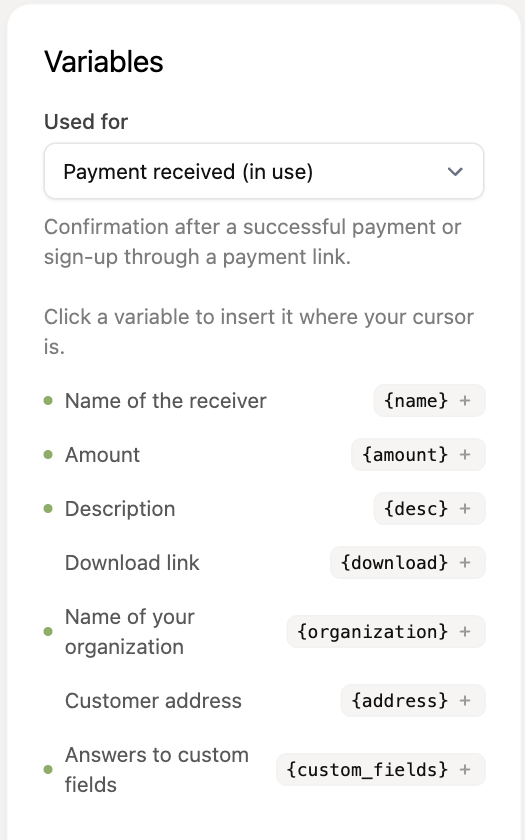
- On the right, under Used for, choose the template type. You then see which variables are available.
- Put your cursor in the text where the overview should go and click {custom_fields} (Answers to custom fields).
- Click Save.
What the e-mail looks like
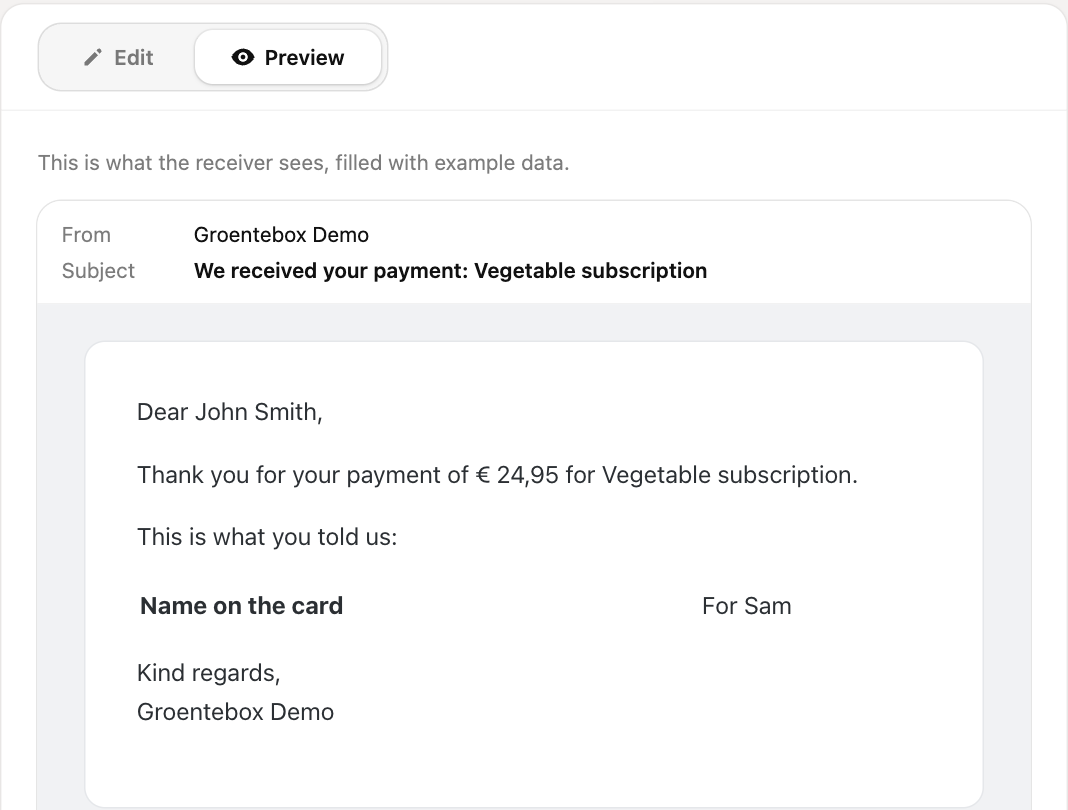
Open the Preview tab to see how the e-mail looks. It shows an example of the overview: each question in bold with the answer next to it. The real e-mail holds the questions and answers of that customer.
Good to know
- The variable only works in the Payment received and Order received templates. It does not exist in other e-mails, such as sending a payment link.
- The e-mail is only sent if you switch on the E-mails option on the payment link and choose this template.
- The overview holds the answers of that one checkout, including fields you keep on the customer. If the customer filled in nothing, the spot stays empty.
- If
{custom_fields}is in a template for a link without custom fields, the spot also stays empty.
A notification for yourself
If you get a notification for a new order, the customer's answers are shown below it automatically. You do not have to set anything up for that.
Read more about custom fields in the article What are custom fields and how do I use them?.