
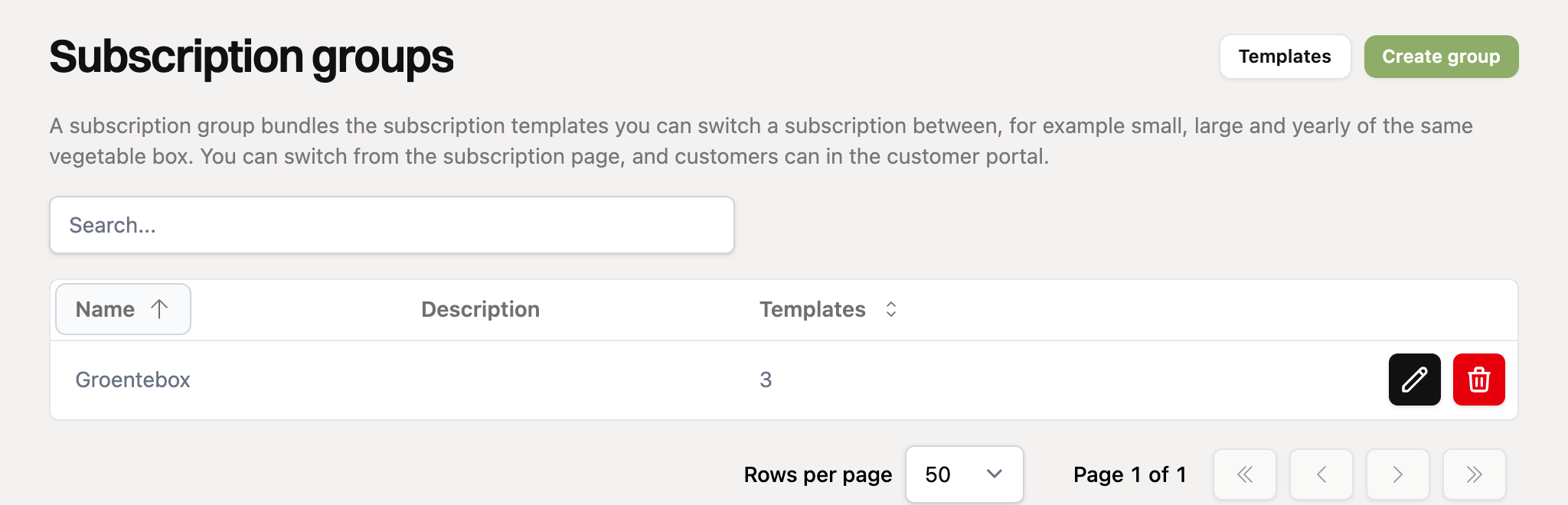
A subscription group bundles the subscription templates a subscription can switch between, for example the small, the large and the yearly vegetable box. You switch a subscription from the subscription page. Customers do it themselves in the customer portal, if you allow it.
Subscription groups are available from the Advanced plan and only work for Advanced subscriptions. Basic subscriptions live at Mollie and cannot switch. Customers can only switch themselves with the customer portal, which is part of the Professional plan.
Creating a group
First create the subscription templates you want to bundle, under Subscriptions and then Templates. Already have them? Then skip this step.
Go to Subscriptions and choose Subscription groups.
Click Create group and give the group a name, for example "Vegetable box". The description is only for yourself, customers do not see it.
Add the templates, see below.
Adding and ordering templates
Open the group (with the pencil in the overview). Under Add a subscription template you see all templates that are not in the group yet, with their amount and billing period. Click Add to put a template in the group. Have many templates? Then a search field appears. Search on name or amount, and press Enter to add the first match.
For each template you can set:
Name in the customer portal: the name customers see when they switch. Leave it empty to use the name of the template.
Description in the customer portal: a short explanation under the name, for example "For 1 to 2 people".
Use the arrows to change the order and the cross to take a template out of the group. Taking a template out does not delete it, subscriptions just can no longer switch to it. Do not forget to click Save.
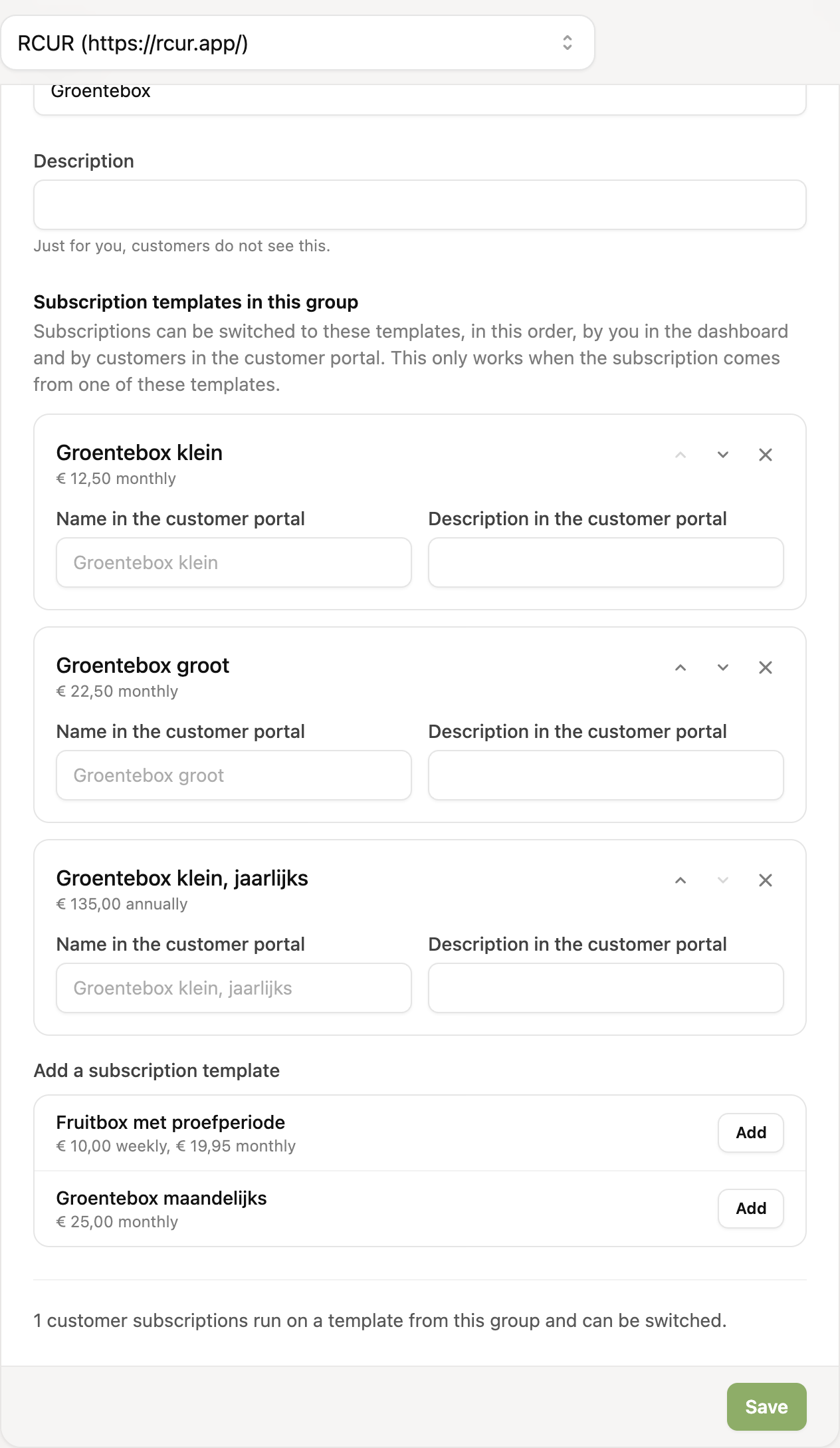
A template can only be in one group. If a template is already in another group, that is shown, and it moves to this group when you add it.
Which plans can a subscription choose?
A subscription can switch to the other templates in the group it comes from, if:
the template has the same currency as the subscription;
the template does not have an open amount;
the subscription is linked to one of the templates in the group, see below.
Linking subscriptions to a template
A subscription can only switch when RCUR knows which template it comes from. That mostly happens by itself:
A subscription you create from a template, assign to a customer from a template, or that a customer takes out through a payment link with a template, remembers that template.
Existing subscriptions are linked when you save the group, and when you open a subscription. RCUR looks for active and paused subscriptions with the same description and currency as a template in the group.
At the bottom of the group you find Link X existing subscriptions. It starts the same search by hand.
Does an existing subscription have another name than the template it was made from, for example because you changed the description? Then RCUR does not recognise it and it cannot switch. So make new subscriptions from a template.
Deleting a group
Open the group and choose Actions and then Delete, or click the bin in the overview. The templates stay, but subscriptions can no longer switch between them.
Subscription groups in the API
You can also manage groups and switch subscriptions through the API. Under /api/v2 you find:
subscription-groupsto list, create, update and delete groups. Withplansyou set which templates are in it and in which order;subscription-templatesto see the templates and their id;subscriptions/{id}/planto see the possible plans (GET), switch a subscription (POST) or withdraw a planned switch (DELETE).
All details are in the API documentation.
What next?
Read "How do I switch a subscription to another plan?" to switch a subscription, and "How do I let customers change their subscription themselves?" for switching by customers in the customer portal.