In the customer portal customers can switch subscription themselves, for example from small to large or from monthly to yearly. You decide which subscriptions they can choose between, and when the change takes effect.
The customer portal is part of the Professional plan and switching works for Advanced subscriptions that are in a subscription group. Create a group first, see How do I create a subscription group?.
Turning switching on
Go to Settings and choose Customer portal.
Under What can customers do themselves? turn on Change subscription.
Set the options below and click Save.
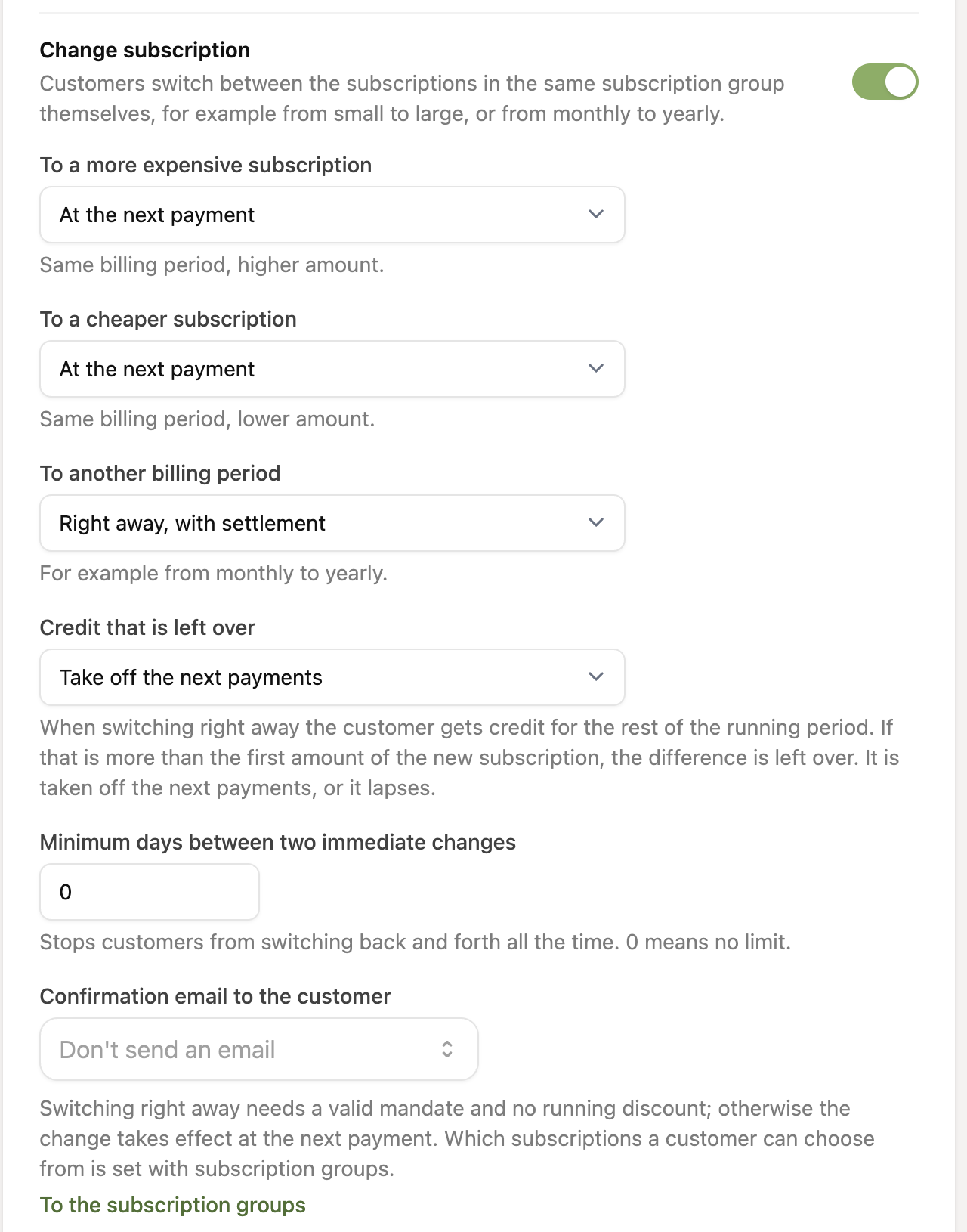
When does the change take effect?
For each kind of change you choose what happens:
To a more expensive subscription: same billing period, a higher amount.
To a cheaper subscription: same billing period, a lower amount.
To another billing period: for example from monthly to yearly.
For each of the three you choose:
Right away, with settlement: the subscription switches immediately. The customer gets credit for the rest of the running period and pays the difference. A new period starts today.
At the next payment: the current subscription keeps running until the next payment, and the new one applies after that.
Not allowed: this kind of change is not offered.
Switching right away needs a valid mandate, no running discount, and a period that is already running. Otherwise the change automatically takes effect at the next payment.
Other options
Credit that is left over: if the credit for the running period is more than the first amount of the new subscription, credit is left over. You take it off the next payments, or it lapses.
Minimum days between two immediate changes: stops customers from switching back and forth all the time. 0 means no limit. A change at the next payment does not count here.
Confirmation email to the customer: choose an email template the customer gets after a change. With
{desc}you put the name of the new subscription in the email and with{date}the date it takes effect. If you choose no template, the customer gets no email.Email me about changes: you also get an email when a customer changes their subscription.
How does the customer switch?
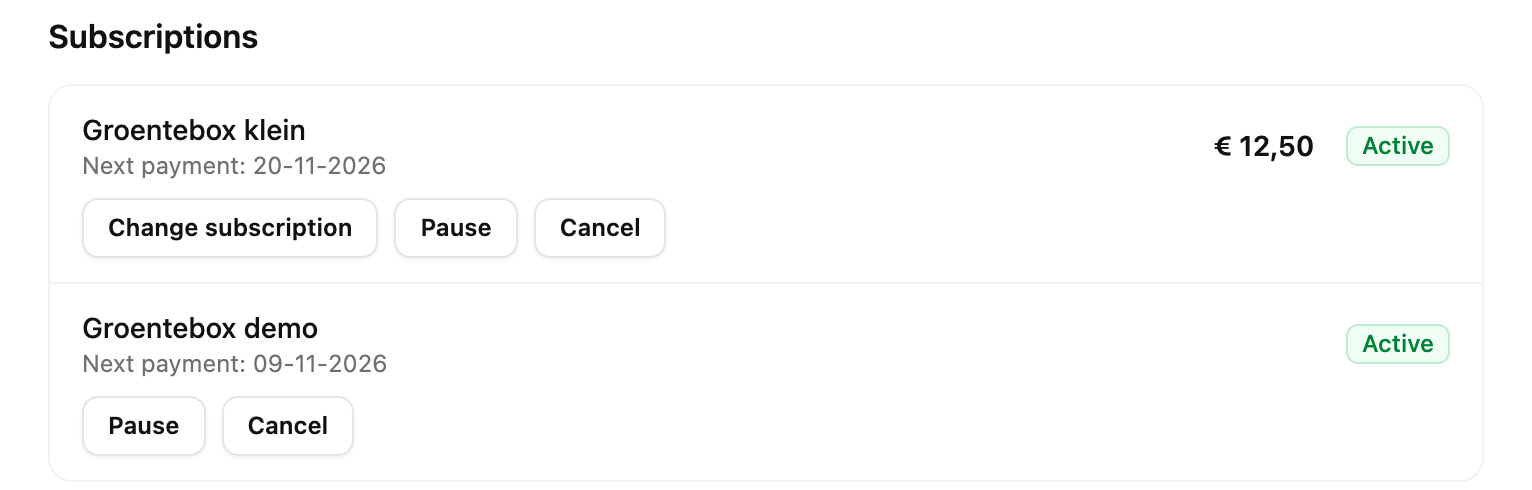
The customer logs in to the customer portal and sees the Change subscription button at their subscription.
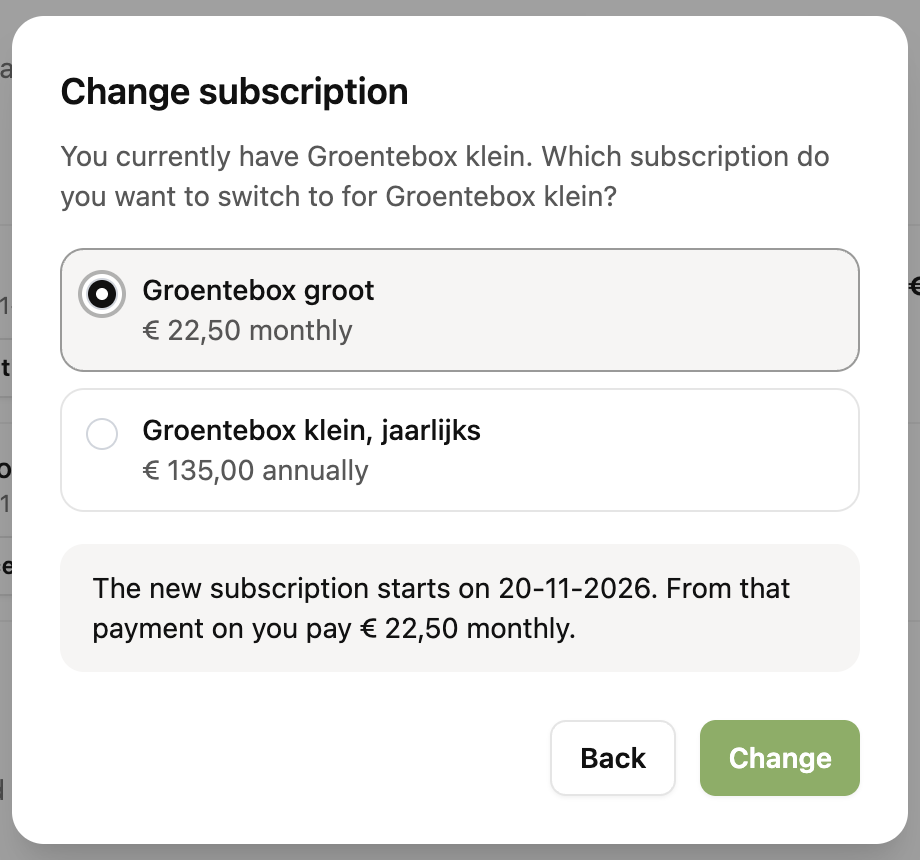
They choose one of the other subscriptions in the group. They see the names and descriptions you set in the group.
They see in words what the change means: what they pay now, or from which date the new amount applies.
They confirm with Change.
If a change is planned for the next payment, the customer sees it at the subscription and can take it back with Withdraw change. If they plan another change, it replaces the first.
Exceptions per subscription
Do you not want a customer to switch themselves? Set Management in the customer portal on the subscription to Customer may not pause or cancel. That also applies to switching subscription. With Customer may pause and cancel it is allowed even when switching is off for all customers.
Why can a customer not switch?
The subscription is not linked to a plan in a group, or there is no other plan with the same currency in the group.
The subscription is paused, cancelled or has no next payment.
The payment rule that is running now is one-time or has a fixed number of payments, such as a trial period.
A minimum number of days between immediate changes is set and the last immediate change is too recent.
This kind of change is set to Not allowed.