
A choice link puts several payment links behind one link. Your customer sees a page with the options you picked, clicks the one they want and continues to the checkout of that payment link. This is handy when you offer several subscriptions or packages and want to place just one link on your website or in an email.
Choice links are available from the Advanced plan.
Creating a choice link
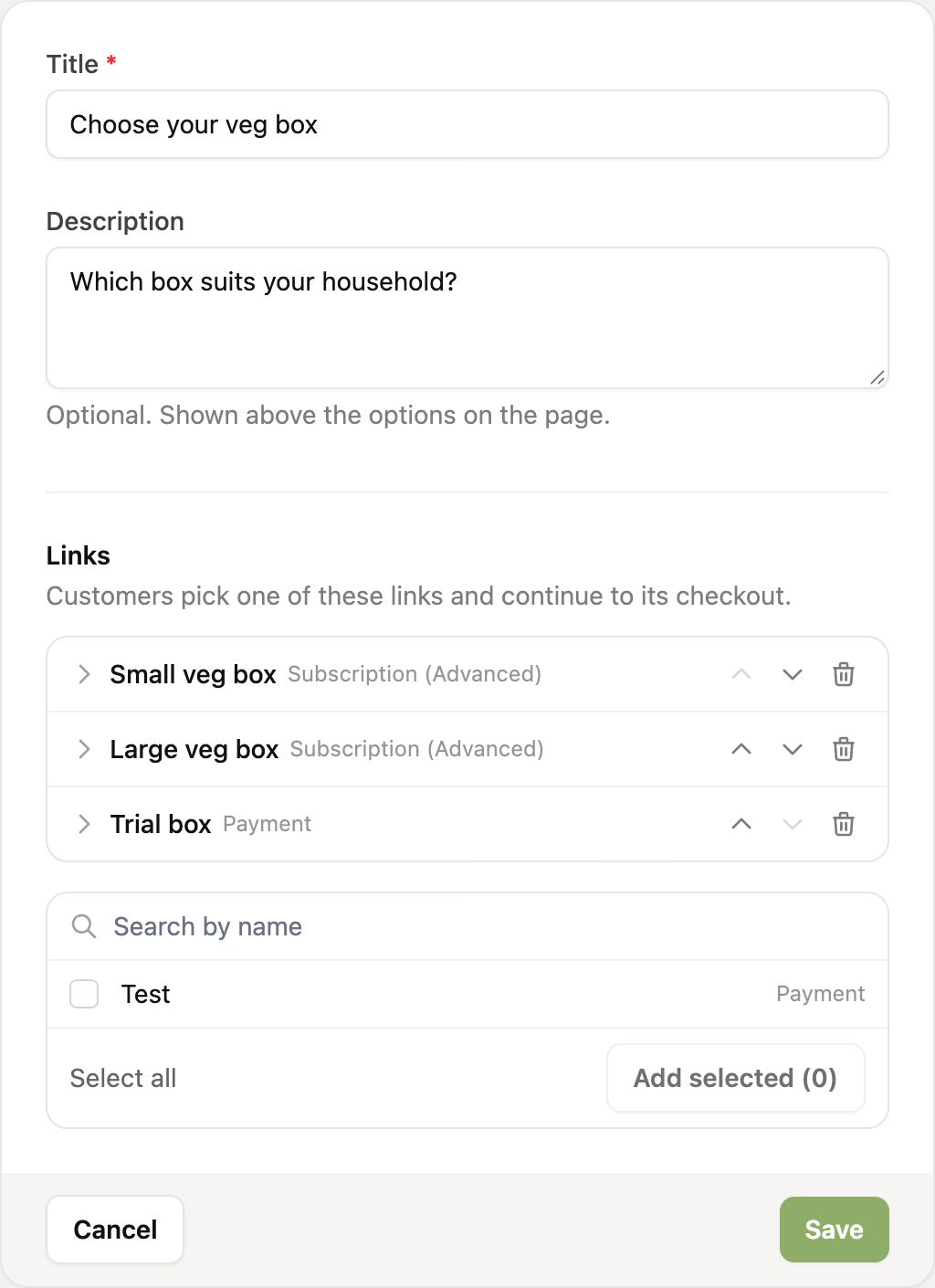
- Go to Payment links in the menu and click Choice links. Then click Add choice link.
- Give the choice link a title. Your customer sees it at the top of the page. Use the description to add a short explanation below it.
- Under Links, pick the payment links your customer can choose from. Search by name, filter by type if you like and tick several links at once. Then click Add selected.
- Put the links in the order you want with the arrows. Click a link to enter your own name and a short explanation.
- Click Save.
Which payment links can I add?
- You can add payment links of any type: one-off payments, subscriptions (Basic and Advanced), orders, mandates and authorisations. You can mix types too.
- Only active payment links of your own organisation and the same Mollie profile can be picked.
- Payment links made for one specific customer cannot be added.
Your own name and explanation per choice
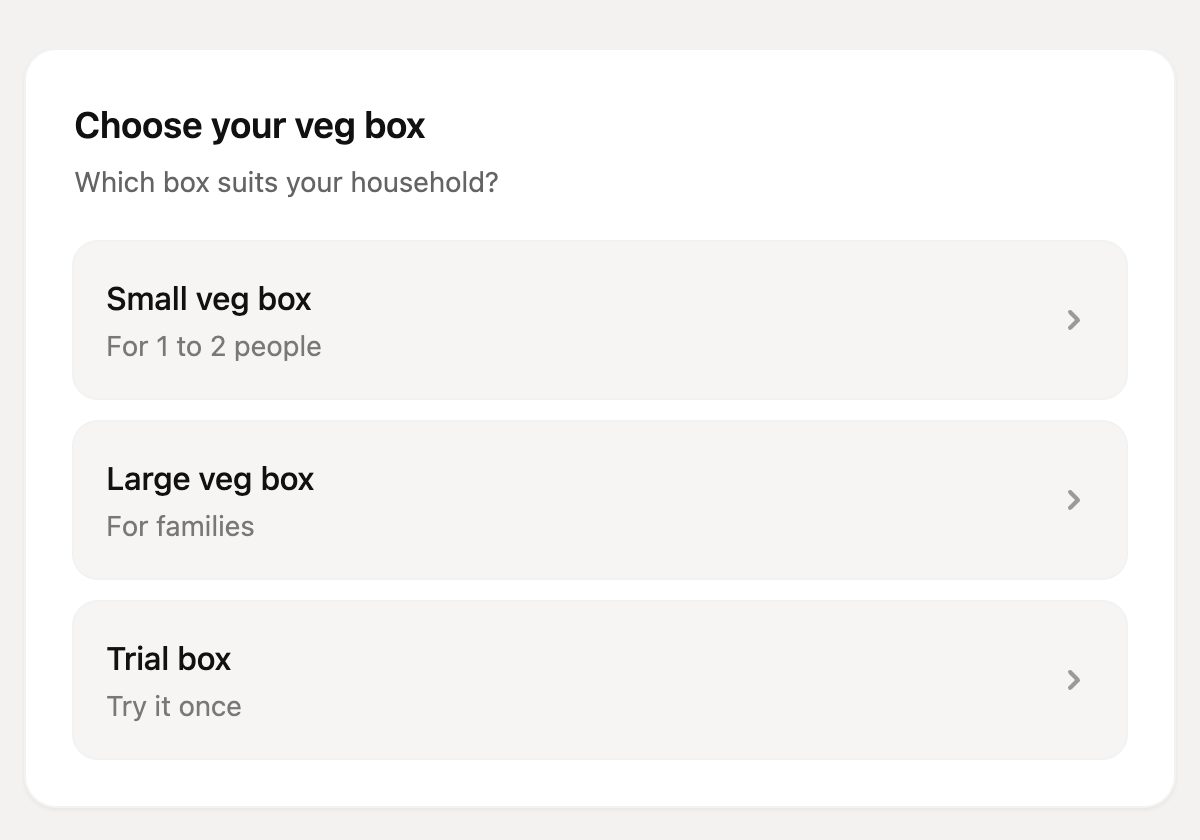
By default the choice link shows the description of the payment link. To show something else, click the link in the form and enter a name and a short explanation, for example "For 1 to 2 people". This does not change the payment link itself.
What does my customer see?
Your customer opens the choice link and sees an overview of your options, in your organisation's branding. Clicking an option takes them to the checkout of that payment link.
- Payment links that are no longer active, for example because they have been paid or have expired, disappear from the choices automatically.
- If no option is available any more, your customer sees a message that nothing is available right now.
- Details you add to the link, such as
?email=or a discount code with?code=, are passed on to the chosen payment link.
Sharing the choice link
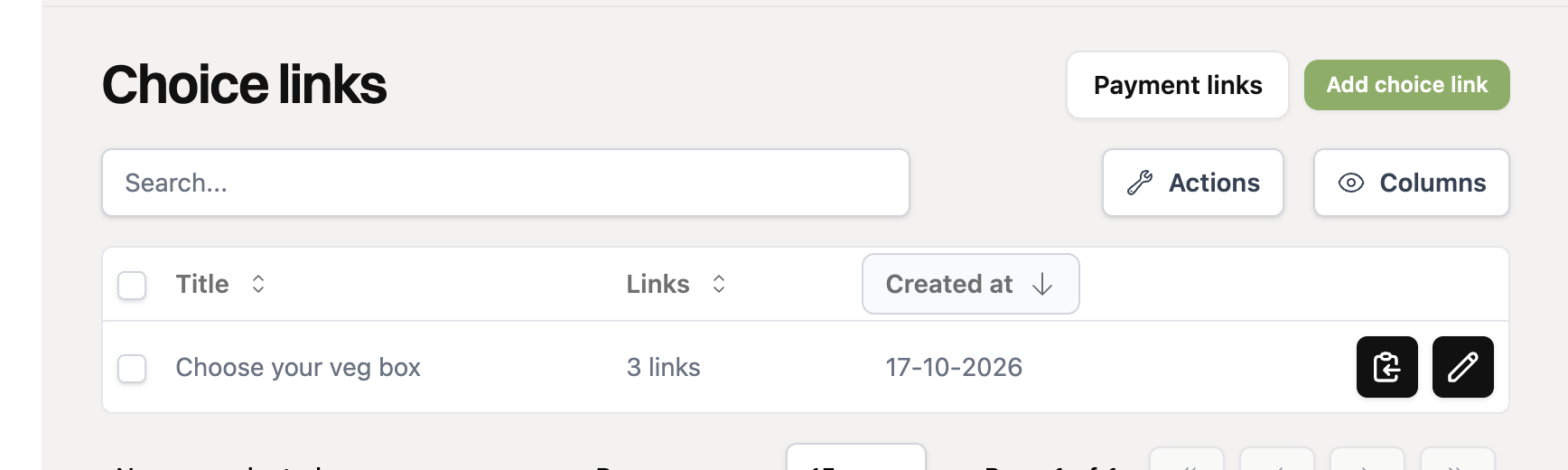
In the overview of choice links you copy the link with the copy button. Clicking the row itself opens the choice page in a new tab. If you use the whitelabel add-on, the choice link is on your own domain.
Editing or deleting a choice link
Click the pencil to change the title, the options or the order. To delete, select one or more rows and choose Delete under Actions. The payment links themselves stay, only the choice link is removed.
Place a choice link on your website instead of a row of separate payment links. Adding a new subscription to the choice is then done in RCUR, without having to change your website.