Not everyone needs to be able to do everything in RCUR. With roles you decide exactly which parts a user may view and manage. This way a customer service employee can help customers without getting to your settings or reports.
You manage roles under Settings > Roles, or with the Manage roles button on the Users page.
Creating a role
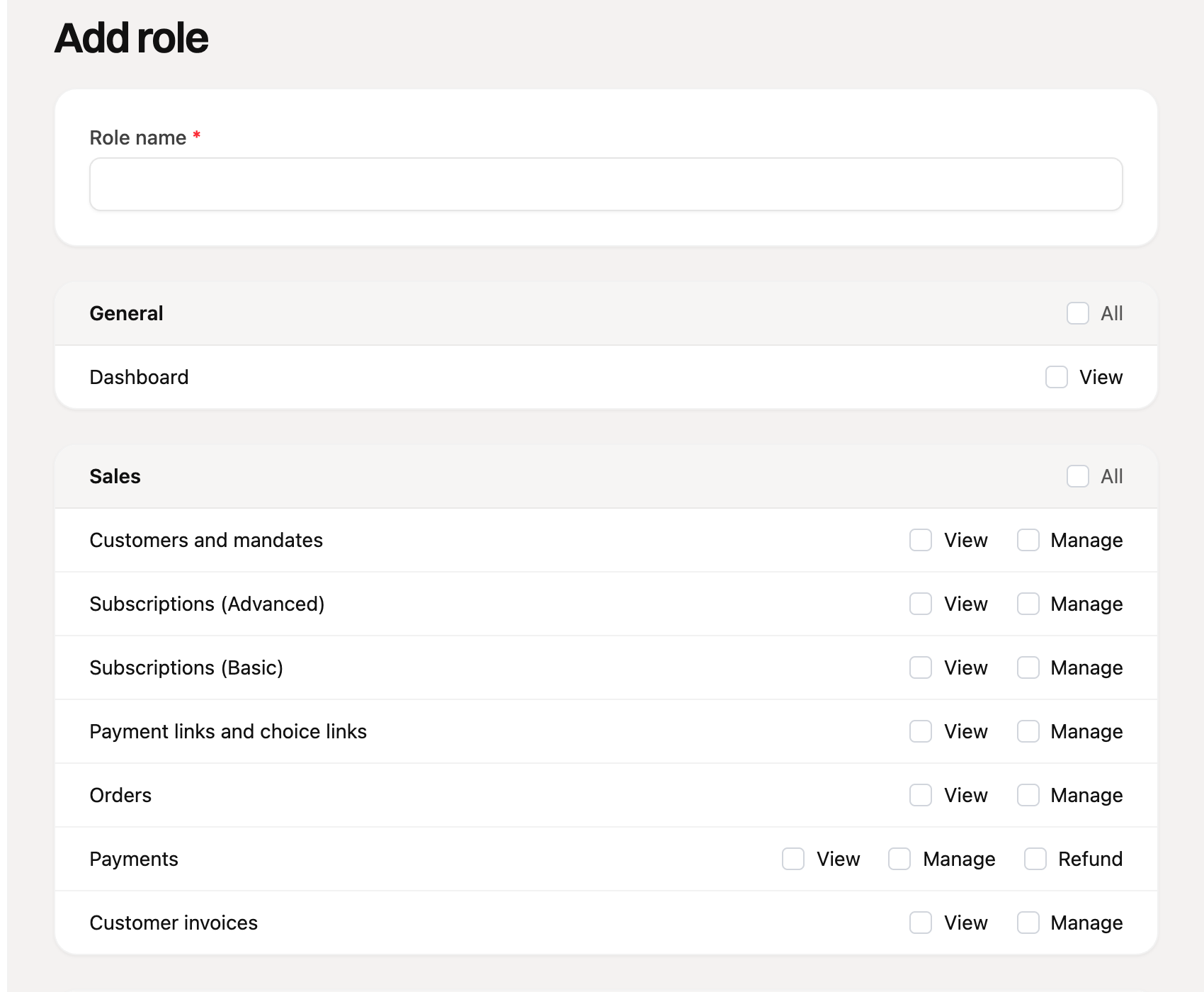
Go to Settings > Roles and click Add role.
Give the role a name, for example "Customer service" or "Accountant".
Tick what the role may do. Use All to select a whole group at once.
Save the role and give it to a user under Settings > Users.
Which permissions are there?
The permissions are divided into groups: General, Sales, Follow-up, Management and Settings. For each area you choose:
View: the user sees the data but cannot change anything.
Manage: the user can also create, change and delete. View is then included automatically.
Refund: only for Payments. This lets the user refund payments.
An area a user has no permission for is missing from the menu and cannot be reached through a link either.
Only give a role what it needs. For an accountant role, View on Customer invoices and Payments is often enough.
Changing or deleting a role
Open the role under Settings > Roles and change the permissions. The change applies immediately to all users with that role. The list shows how many permissions and how many users a role has.
A role that is still in use cannot be deleted, including when a pending invitation uses it. First give those users another role.
Good to know
Owners and admins can always do everything. You do not set their permissions.
You can only give a permission to a role if you have it yourself. A role with permissions you do not have cannot be changed by you.
Roles only apply within your organization. If you have several RCUR accounts, create the roles per account.
To manage roles and users, a user needs the permissions Settings: roles and Settings: users.
Also read the article Inviting and managing users about adding users.