Do you work with colleagues, an accountant or a customer service team? Then you can give them access to your RCUR account. Everyone signs in with their own login, so you can always see who did what.
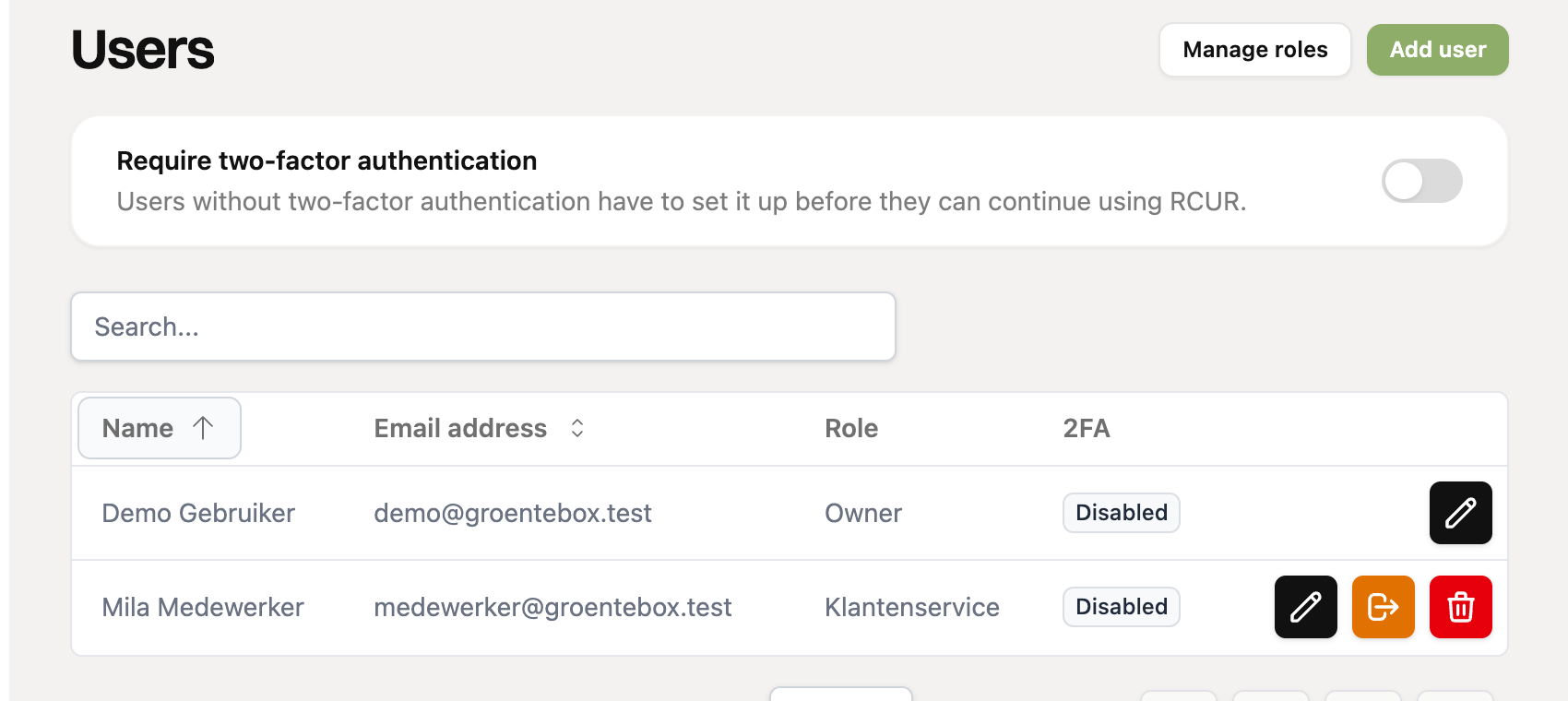
You manage users under Settings > Users.
Adding a user
Go to Settings > Users and click Add user.
Enter the email address, choose the user's language and choose a role.
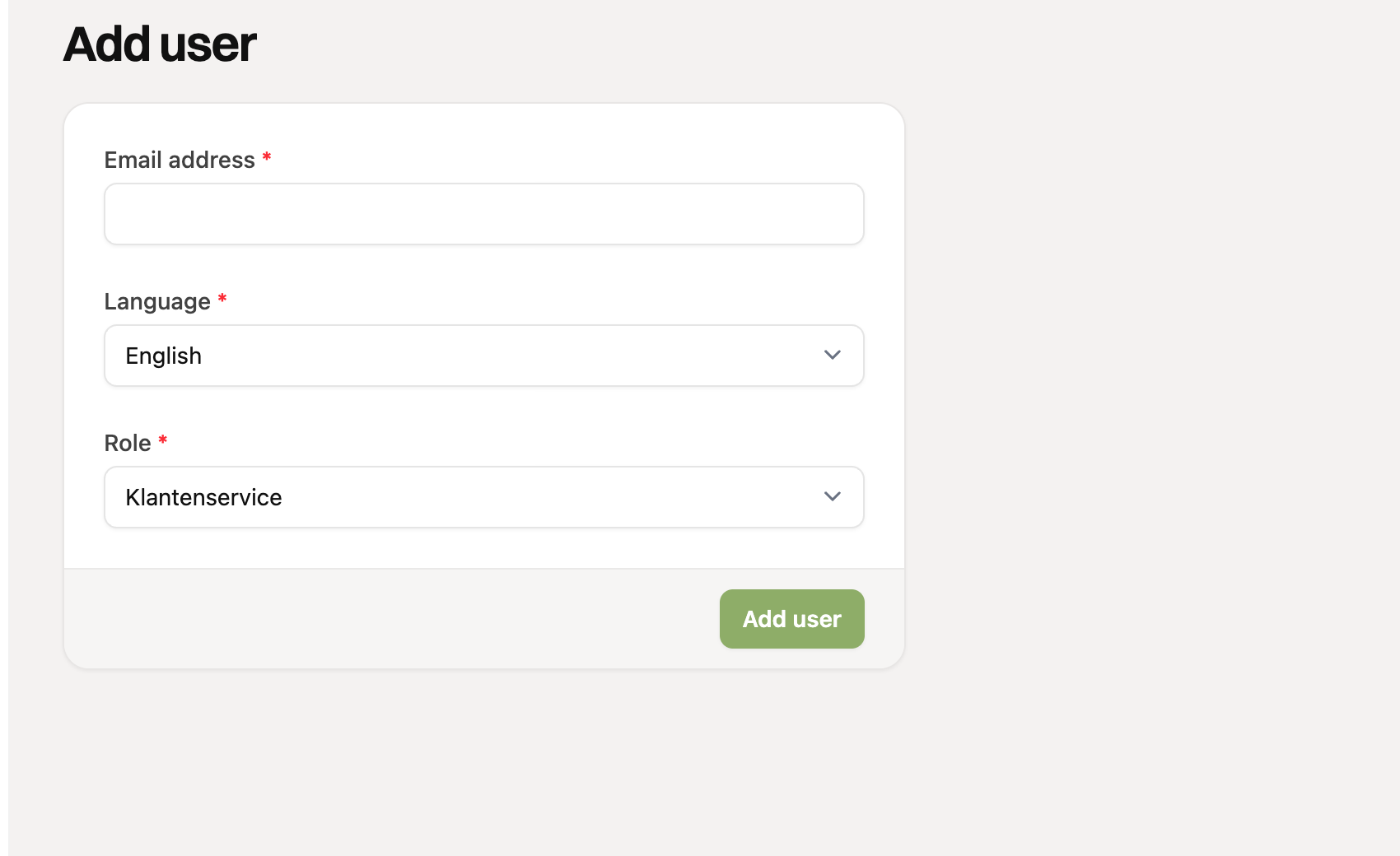
Click Add user.
If the person already has an RCUR login, they get access to your organization right away. If not, they receive an invitation by email to create an account. Until then the invitation is listed at the top. You can delete an invitation that has not been accepted yet.
A role you cannot hand out yourself does not appear in the list. You can never give away more permissions than you have yourself.
Roles in RCUR
Owner: the creator of the account. The owner can do everything and cannot be changed or removed by others.
Admin: can do everything, including managing users and roles.
Custom roles: roles you create yourself with exactly the permissions someone needs. Read how this works in the article Setting up roles and permissions.
Changing a user's role
In the Users list, click the pencil next to the user.
Choose a different role and save.
What you may change depends on your own role. The owner can change anyone, an admin only users with a custom role. You cannot change your own role.
Removing a user
Click the red trash can next to the user and confirm. The user then no longer has access to your organization. The person's login remains, for example for other organizations.
Signing out on all devices
Is a laptop lost, or do you not trust a session? Click the orange Sign out on all devices button next to the user. The user has to sign in again, including on remembered devices.
Requiring two-factor authentication
At the top of the page the owner can switch on Require two-factor authentication. Users without two-factor authentication then have to set it up before they can continue in RCUR. The 2FA column shows who has already done so.
Sign-ins and sessions
At the bottom of the page you see the latest sign-ins of your users, with time, IP address, browser and location. Seen a sign-in that does not look right? Ask the user to change their password right away and sign them out on all devices.
Your own details
Every user can change their own name, email address, password and language in their own profile.