
A task lets you note what still needs to happen for a customer, for example "call about the failed collection". You can attach a date and a colleague, so nothing slips through the cracks.
Creating a task
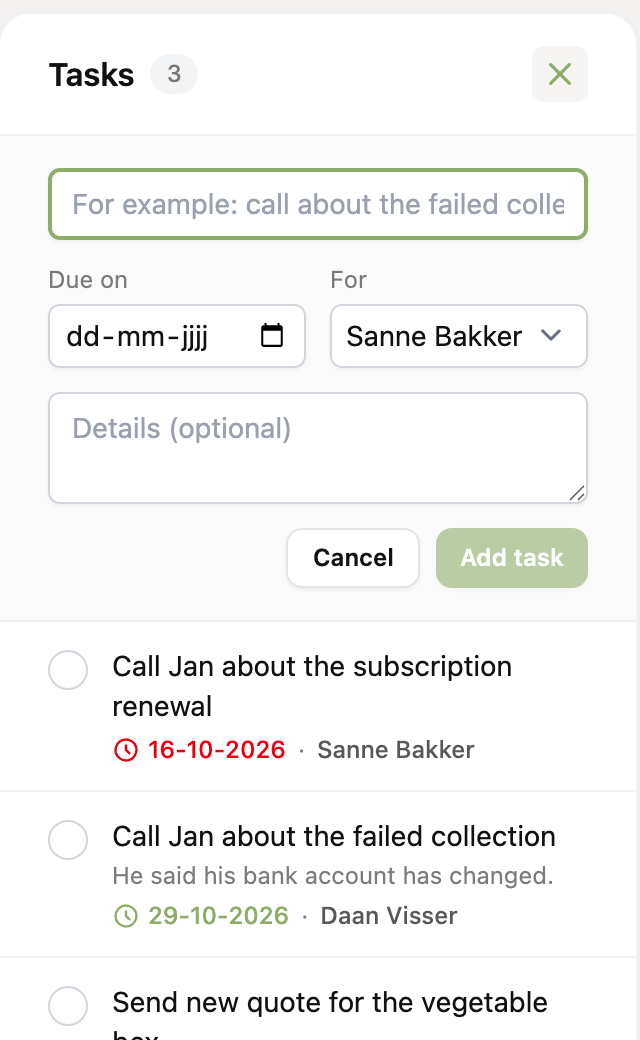
- Open the customer's page and look at the Tasks card on the right.
- Click the plus at the top right of the card.
- Enter the task under What needs to happen?.
- Optionally pick a date under Due on (today or later) and a colleague under For. If you leave these empty, the task has no date or is not for anyone in particular.
- Optionally add Details and click Add task.
Viewing, completing and changing tasks
The Tasks card lists the open tasks by date, with the task that is due first on top. If the date has passed, it is shown in red. If it says Created automatically, a workflow made the task.
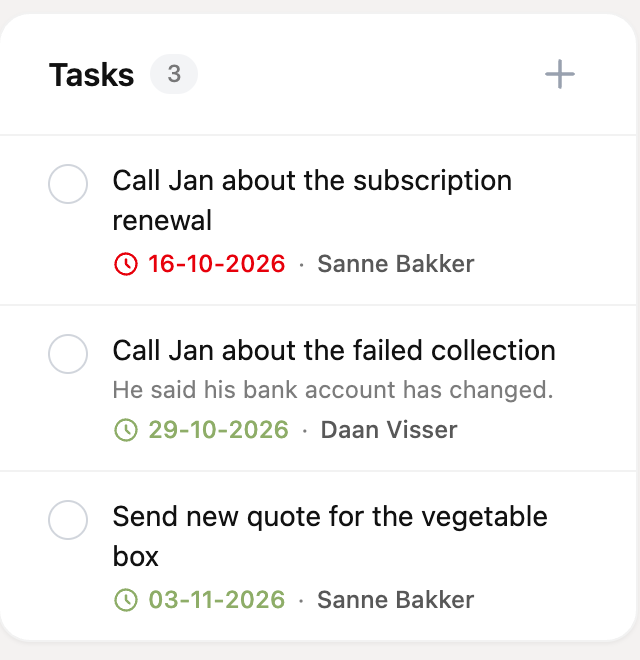
- Complete: click the circle in front of the task. The task disappears from the list and moves under Show completed tasks.
- Reopen: not right after all? Open the completed tasks and click the check mark.
- Change the date: hover over the task and click the clock. Pick a new date or clear the date.
- Delete: hover over the task and click the trash can. This cannot be undone.
Creating, completing, reopening and deleting tasks all show up in the customer's history.
The Reminders page
From the date of a task, it also appears on the Reminders page, above the payment links. That way you can see in one place what needs to happen today for all your customers. From there you can complete a task (check mark), make it appear again later (clock) or open the customer.

Every morning we send an email to colleagues who have this turned on, when there are tasks due today or earlier. Everyone can turn that email on or off in their own user settings (Email for due reminders). Tasks are never emailed to the customer.
Did you set a reminder date on a note? It has automatically been turned into a task. Notes no longer have a reminder of their own.
Creating tasks automatically with a workflow
A workflow can create a task for the customer by itself, for example as soon as a payment fails.
- Go to Settings > Workflows and create a new workflow, or open an existing one.
- Pick an event, for example Payment failed.
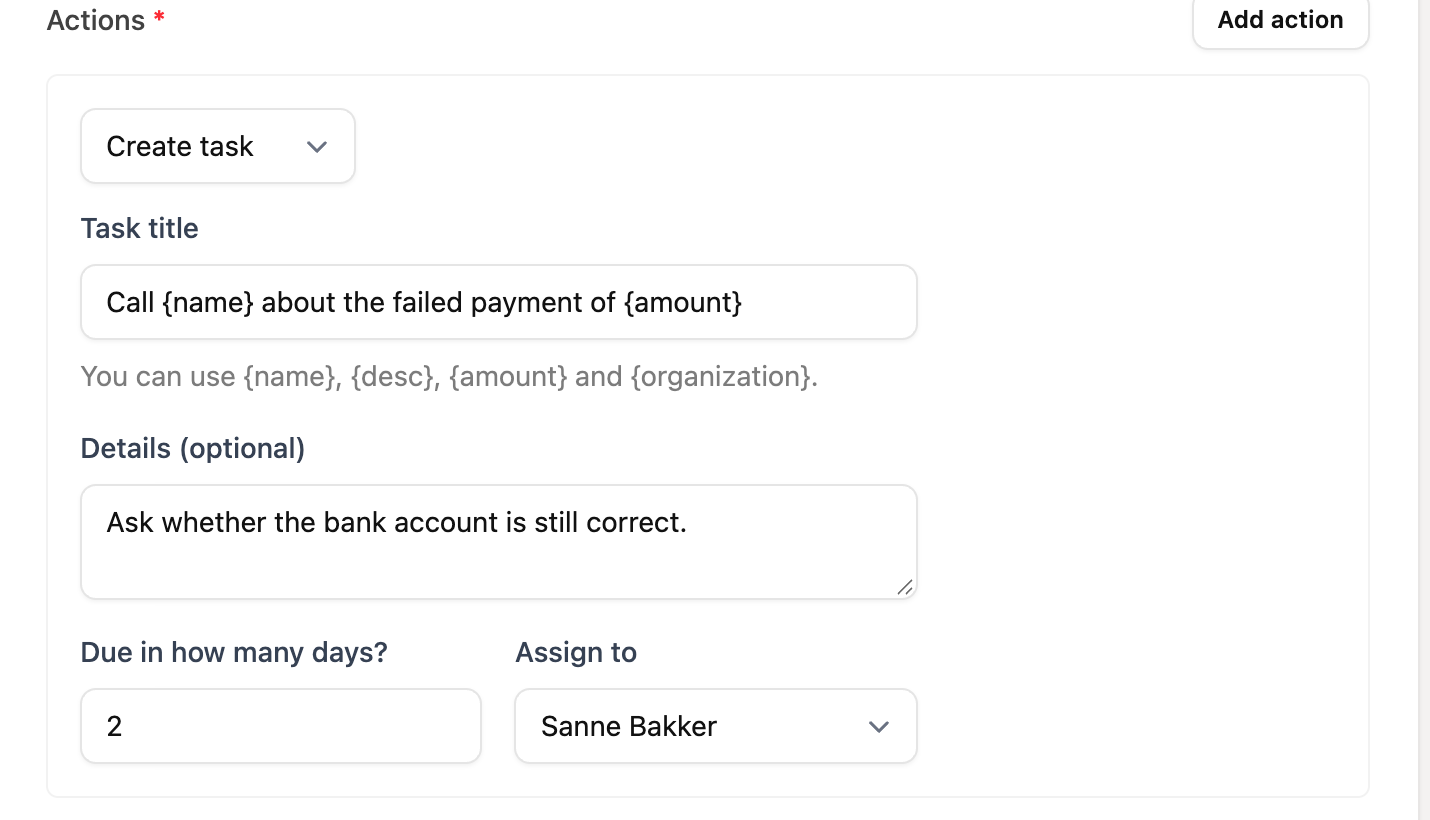
- Add an action and choose Create task.
- Fill in the Task title. You can use
{name},{desc},{amount}and{organization}. They are filled in per customer. - Optionally add details, set under Due in how many days? how many days from now the task is due, and under Assign to which colleague gets the task.
If the same workflow fires again while its task is still open, we do not create a second task with the same title. You will not end up with a pile of duplicates.