
With two-factor authentication (2FA) your password alone is no longer enough to log in. Besides your password you also enter a code from an authenticator app on your phone. Even if someone gets hold of your password, they still can't get into your account.
You can use any authenticator app, such as Google Authenticator, Microsoft Authenticator, 1Password or Authy.
Enabling two-factor authentication
Go to Settings > Users and open your own user. Next to Two-factor authentication, click Manage.
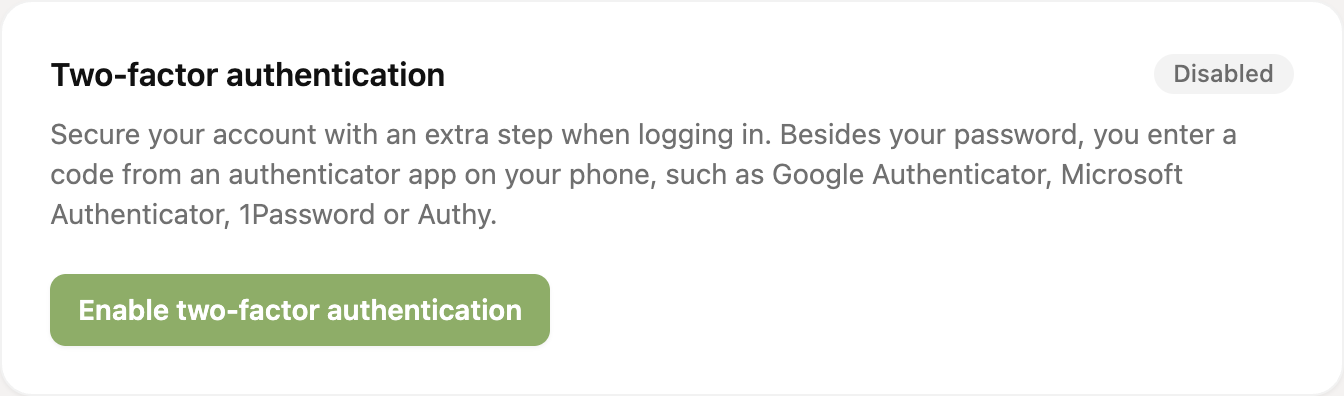
Click Enable two-factor authentication.
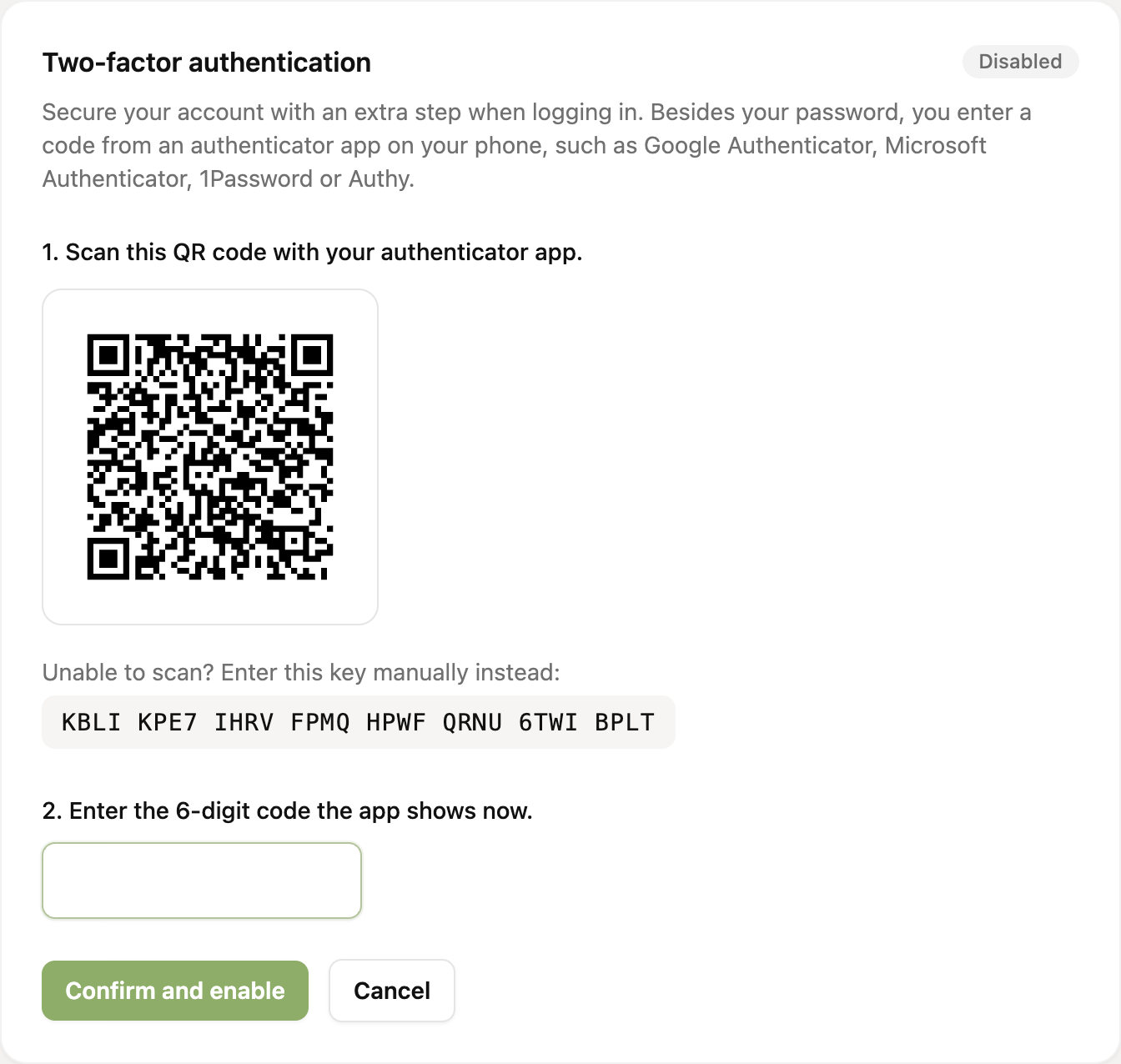
Open your authenticator app and scan the QR code. Can't scan it? Enter the key below the QR code manually instead.
Enter the 6-digit code the app shows and click Confirm and enable.
A code from your app is only valid for 30 seconds and can be used once. Seeing a message that the code was just used? Wait until the app shows a new code.
Save your recovery codes
Right after enabling, you get a list of recovery codes. Each code lets you log in once if you lose your phone or can't open your app.
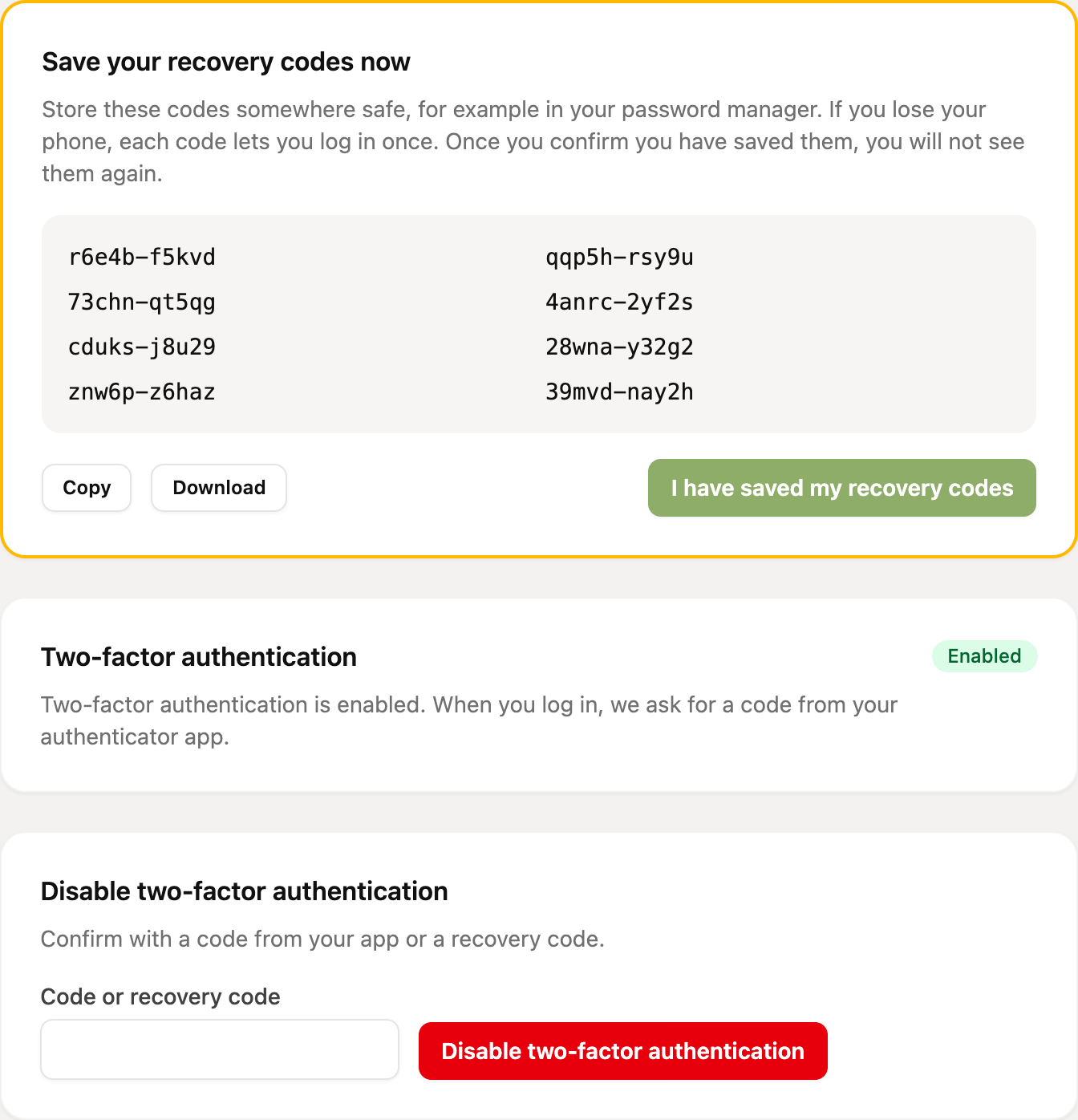
Copy or download the codes and keep them somewhere safe, for example in your password manager.
Click I have saved my recovery codes.
After you confirm, you can no longer see the recovery codes. Make sure you save them first.
Logging in with two-factor authentication
When you log in, you first enter your email address and password. RCUR then asks for the code from your authenticator app. Don't have your app at hand? Choose Use a recovery code and enter one of your recovery codes. Each recovery code works only once.
Creating new recovery codes
Running low on recovery codes, or didn't store them properly? The Two-factor authentication page shows how many unused codes you have left. Click Create new recovery codes and confirm with a code from your app. The old recovery codes stop working afterwards.
Disabling two-factor authentication
Go to the Two-factor authentication page, enter a code from your app (or a recovery code) at the bottom and click Disable two-factor authentication. If your organization requires two-factor authentication, you have to set it up again right away.
Lost your phone and recovery codes?
On the login page, at the code step, click No access to your app or recovery codes? and request a confirmation link.
Click the link in the email within 60 minutes to confirm the recovery.
After you confirm, you wait 72 hours. Then two-factor authentication is disabled and you log in with just your password. Set it up again right away.
The waiting time is deliberate: it gives the real owner of the account a chance to cancel the recovery if someone else requested it. If you log in normally with a code in the meantime, the recovery is cancelled automatically. Can't wait that long? Please contact our support.
Requiring two-factor authentication for your team
Are you the account owner? Then you can require two-factor authentication for all users under Settings > Users. Users without two-factor authentication then have to set it up before they can continue. Enable it for yourself first, as that is needed to turn the requirement on. You can read more about users in the article about inviting and managing users.